Tap to Select, Tap to Place — Tap a card to select it (it will highlight), then tap the destination pile to move it there. Tap the selected card again to deselect it. If you select multiple stacked cards, they’ll move together as a group.
Drag and Drop — Press and hold a card, then drag it to your desired destination and release. You can drag single cards or valid sequences of cards.
Double-Tap to Foundation — Double-tap any card to automatically move it to its foundation pile (if the move is valid). This is the fastest way to build up your foundations.
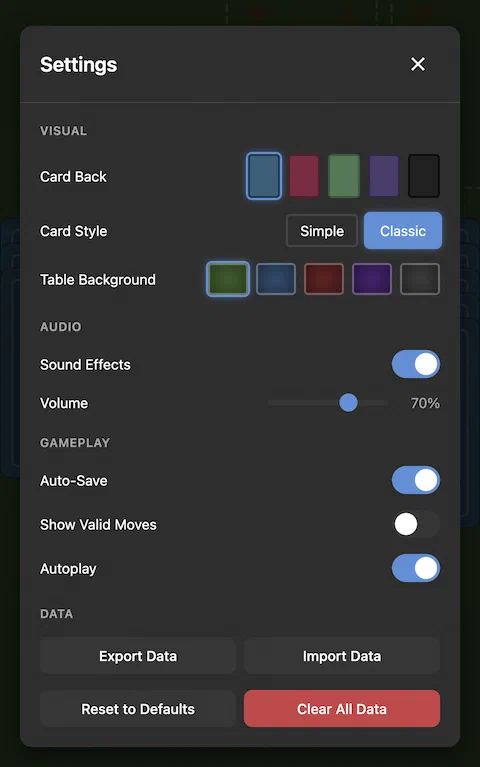
Autoplay Mode — When Autoplay is enabled in Settings, tapping any movable card will automatically send it to the best available destination, prioritizing foundations, then non-empty tableau piles, then empty spaces.
Drawing from the Stock — Tap the stock pile (the face-down deck) to draw cards to the waste pile. When the stock is empty, tap it again to recycle the waste back into the stock (if passes remain).
The toolbar appears at the top of the game screen:
Undo — Reverses your last move. Disabled when there’s nothing to undo.
Auto-Complete — Automatically moves all playable cards to the foundations. Only enabled when there are cards that can be moved to foundations. Useful for finishing a game quickly once the outcome is certain.
New Game — Starts a fresh game with a new random deal. Your current game progress will be lost (counts as a loss if you’ve made moves).
Restart — Replays the exact same deal from the beginning. Useful for trying a different strategy on the same layout.
Pause — Pauses the game timer and hides the cards. Click again to resume. The game auto-pauses when you open settings or other dialogs.
Help — Shows the rules and instructions for the current game.
Stats — Opens your statistics and high scores for the current game type.
Sound — Toggles game sound effects on or off.
Settings — Opens the settings panel where you can customize card appearance and gameplay options.
Menu — Returns to the home screen. Your game will be auto-saved if that option is enabled.
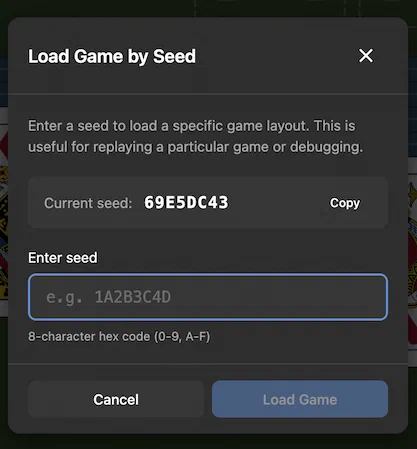
Every game deal has a unique seed, an 8-character code (like “1A2B3C4D”) that determines exactly how the cards are shuffled. The same seed always produces the same card layout, making it possible to replay specific deals or share challenging games with others.
The current game’s seed is displayed in the footer at the bottom of the screen. You can click on it to open the seed dialog, where you can:
View the current seed — See the code for your current game
Copy the seed — Save it to share with others or replay later
Load a specific seed — Enter any valid seed to play that exact deal
Seeds are also recorded with your high scores, so you can revisit your best games and try to beat your previous scores on the same layout. When viewing stats, you can click the replay button next to any high score to start a new game with that seed.
This system is useful for:
Replaying a particularly enjoyable or challenging deal
Sharing interesting game layouts with friends
Practicing difficult deals to improve your strategy